


Working with the disability community to advance accessibility innovation is a core part of our mission to build for everyone. Here’s a look at our latest accessibility features that use AI — from Pixel Camera updates to more widely available captions.
Get more suggestions to capture the perfect shot
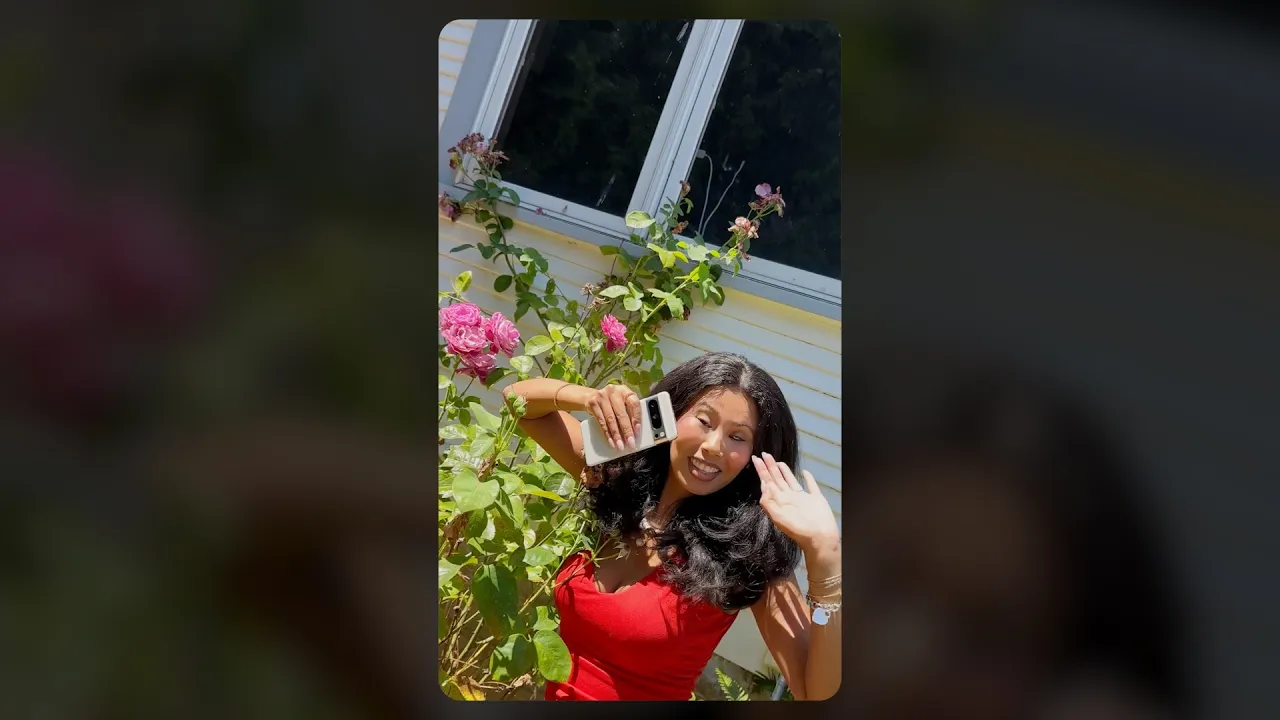
Use Guided Frame to take great selfies and photos
Guided Frame, built with and for people with blindness or low vision, lets you take great photos and selfies with your Pixel Camera. Guided Frame will give spoken guidance to help you not only get your face in the frame, but also position the camera angle just right. Prompts will tell you to tilt your face up or down, or pan left to right before the camera auto-captures the photo. It will also announce that “lighting is low,” so you’ll know to move your phone to find a better shot. The latest update to Guided Frame also delivers improved object recognition, intelligent face filtering in group photos, and better focus on subjects even in complex scenes.
Previously, Guided Frame was only accessible through TalkBack, Android’s screen reader. Now you can also turn the feature on right from the camera settings, making it even easier for those who don’t use screen readers.
Find the information you need with your Pixel Camera
Last year we partnered with the low-vision community to release Magnifier, a Pixel-exclusive app, that uses your phone’s camera to help you zoom into the world around you. Now, we’re using AI to help you do even more with Magnifier.
- Search for specific words in your surroundings. This is especially helpful if you’re looking for your flight’s departure time at the airport or trying to find a vegetarian dish on a menu.
- Use a picture-in-picture format so you can see both the bigger context of what you’re looking at along with the details on your screen. For example, if you’re at a deli counter and want to take a closer look at the menu board, snap a photo and use picture-in-picture to check out all of your options without losing your place.
- Choose the best lens for the moment in your app settings, whether you’re zooming in with a macro lens to read the fine print or busting out the wide-angle lens to get more context.
- Put the camera on you! Turn on Selfie Illumination to use your front-facing camera as a mirror for your touch-up.
Use Magnifier to locate text in your surroundings
Magnifier is available on Google Play for Pixel 5 and up.1
Turn on a new Live Transcribe mode — just for foldable phones
Live Transcribe on Android helps over a billion people get real-time transcriptions of speech and sounds around them. Based on community feedback, we learned that it would be helpful if all the speakers in a conversation could see their own transcriptions while using Live Transcribe. So today, we’re launching a new dual-screen mode for foldable phones, including the new Pixel 9 Pro Fold. With dual-screen mode, you can easily set your phone in a tabletop posture on any surface for better visibility of transcriptions. Now everyone around the table can follow the conversation — whether you’re attending a meeting or having a dinner conversation with friends.
